




Want to verify a big email list without headaches, guesswork, or “why is my bounce rate suddenly high?” panic? This step-by-step guide will show you exactly how to run bulk email verification using Reoon Email Verifier. From preparing your file to downloading clean, segmented results you can confidently use in your email marketing platform or CRM.
You’ll learn:
- How to upload a TXT/CSV and start verification
- How to choose the right email column (important for multi-column CSVs)
- How to download Safe only, Safe+Role, Safe+Role+Catch-All, or Others
- What to do with Unknown emails (and why your credits are refunded)
- How long the data is stored (and how to delete files manually)
Before you start (2-minute checklist)
- You have a Reoon Email Verifier account (free registration, no card required)
- You have enough credits for the entire list (daily + instant credits combined)
- Your list is in TXT (emails only) or CSV (emails + other columns) format
Registration link: https://emailverifier.reoon.com/register/
Login link: https://emailverifier.reoon.com/login/
Important: You can only upload a list if the total number of emails is equal to or less than your available credits (daily + instant). Once you have uploaded your email list, our system will try to verify all of them as fast as possible.
Step 1: Check your credits (so the upload doesn’t fail)
After login, go to the Overview tab to see your available credits and stats. You can also see the credits in the left sidebar of all pages.
Quick credit tip:
- Daily credits reset every day at 12:05 AM GMT (unused daily credits don’t stack).
- Instant credits never expire (they stay until you use them).
- If you have both, daily credits are used first.
Step 2: Prepare your file (TXT vs CSV)
Option A: TXT file (emails only)
This is the simplest format. Your TXT file should contain one email per line, like:
[email protected]
[email protected]
[email protected]

If you do not want to create a txt file and just want to copy-paste the list, you can also do that. You can just copy-paste your email list in the Email Verification tab and start the verification process.
Option B: CSV file (emails + other data columns)
CSV is great when you want to keep extra fields (name, company, phone, etc.). Reoon will keep your columns and append verification details (about 18 additional columns or more) after processing.
Critical CSV rule (single vs multi-email columns):
- If your CSV contains only one email column (and other columns), you can simply upload it as it is. Our system will automatically detect the email column for you. It is not necessary to keep the word email in the column header in such a case.
- If your CSV contains multiple email columns, only the first email column will be verified by default.
- If you want Reoon to verify a specific email column, rename that column header to email and rename other email-looking columns to something that does not include the word email (example: mango1, mango2).
Example:
- Verified column header: email
- Other column headers: mango1, contact2, alt_address
- Avoid: email2, secondary_email (these can be detected as email columns)
Pro tip: If your list is messy, run a quick duplicate removal in your spreadsheet first. It saves credits and keeps your results cleaner. However, we do have built in duplicate removal feature available, but doing that in excel will give you more control over your data.
Step 3: Open Bulk Verification
Go to the Email Verification tab:
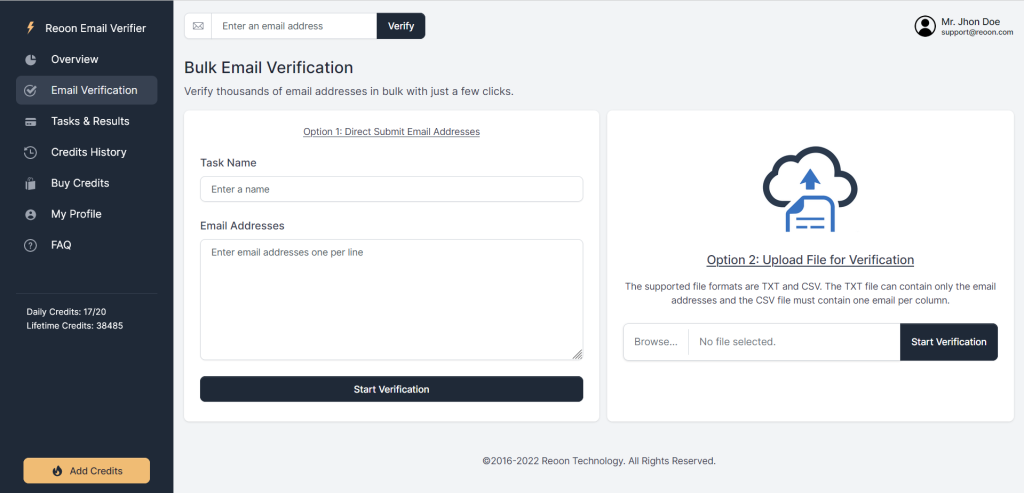
Email Verification Tab: https://emailverifier.reoon.com/bulk-verification/
On this page, you can:
- Verify a single email instantly from the top header section(you can actually do that from any page)
- Verify a bulk email list by:
- Copy-pasting a list, or
- Uploading a TXT/CSV file
Limits to know:
- No limit on the number of emails in theory, but the maximum file size is 50MB, which you can upload.
Step 4: Upload your file (or paste your list)
Choose your method:
Method 1: Upload TXT/CSV
- Click the upload/browse option and select your .txt or .csv file.
- Press the start verification button.
Method 2: Copy-paste your list
- Paste emails into the bulk input area and give it a title.
- Double-check for accidental extra spaces or random characters and press the start verification button.
Optional (recommended): enable the checkbox:
“Remove duplicate rows (only if all the columns are same).”
This helps when your CSV has repeated identical rows.
Step 5: Start verification (and what happens behind the scenes)
Once you submit the list, Reoon creates a verification task and starts processing.
Reoon checks multiple signals, including:
- Syntax validity
- Disposable/temporary emails
- MX record/mail server acceptance
- SMTP connectivity (where possible)
- Internal different signal analysis
- Role accounts, catch-all detection, inbox full/disabled signals, spamtrap detection (when identifiable)
- A 0-100 overall_score, along with the status, will be provided to help you gauge the risk
Good to know: Dashboard verification always uses deep verification (Power-mode level checks internally). That’s why results are detailed and that’s why verification of some providers may take longer than others.
Step 6: Track progress and open your results
Go to the Tasks and Results page. You can directly go to that page by clicking the popup button after submission:
Link: https://emailverifier.reoon.com/results/
Here you can:
- See ongoing/completed tasks
- Check the statistical analysis of the results
- Download segmented results
- Delete your verification files manually (more on that below)
Step 7: Download the right segment (this is where most people win or lose)
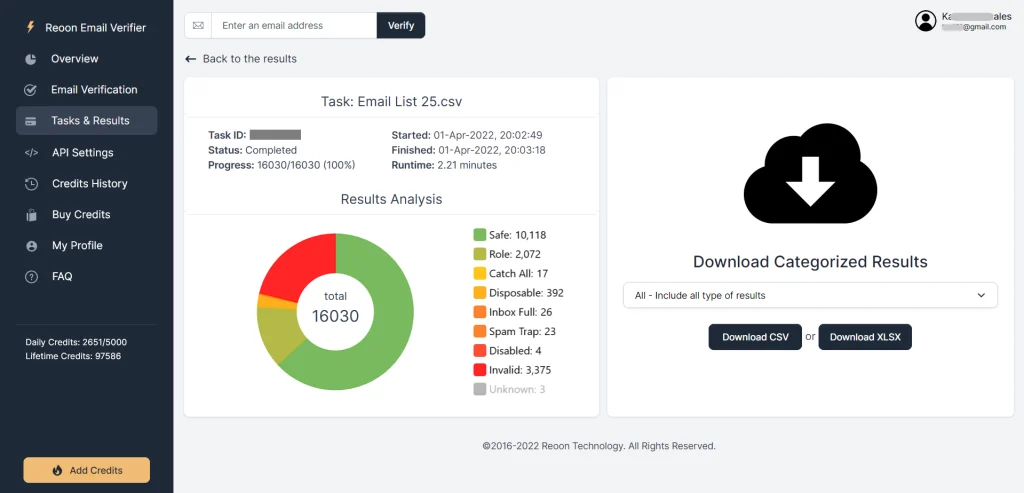
Once your task is complete, you’ll see multiple download options. Reoon makes this easy by letting you download specific segments like:
- All Results
- Safe Only
- Safe + Role
- Safe + Role + Catch_All
- Catch_All Only
- Risky (role + catch_all + disposable + full_inbox + spamtrap)
- Invalid (invalid + disabled)
- Unknown
Which one should you use? Here’s a simple guide:
If you’re doing cold email outreach
- Start with Safe Only or Safe + Role
- Be careful with Catch-All and Unknown (higher risk)
- Always exclude Invalid
If you’re emailing subscribers/newsletter contacts
- Safe + Role is often a good default
- You may choose to test Catch-All carefully if you need the volume, but don’t mix it into your “best list” blindly
Practical tip: Many teams use the overall_score to build their own rule set. For example, 90+ is typically very safe, 80-90 is low risk, 70-80 are mostly catch-alls (they are not invalid) and lower scores should be handled more cautiously.
Step 8: What to do with “Unknown” emails (and why you’re not wasting credits)
Unknown doesn’t mean “bad.” It means the system couldn’t confirm the exact status, often due to slow/busy servers of the address you are trying to verify, firewalls, or temporary connection issues.
Here’s the best way to handle Unknown emails:
- Download the Unknown segment separately (don’t mix it into your Safe list).
- Wait 15-30 minutes.
- Re-verify that Unknown segment again.
In many cases, you’ll get more successfully verified results on the second attempt.
Credit note: If an email returns Unknown, the credit is automatically refunded, because Unknown is not counted as a successful verification.
Step 9: Delete files for privacy (and understand retention)
Reoon automatically deletes verification data after 15 days. After deletion, you can’t view or recover the verification file data again (stats remain).
If you want to delete sooner, go to the Results page and use the delete option under the download buttons to remove the verification files from the servers manually.
Note: Task details and verification statistics (like total verified, safe/invalid counts) remain available even after file deletion.
Troubleshooting (quick fixes to common “wait, why?” moments)
“My CSV has multiple email columns and the wrong one got verified.”
Rename the email column you want verified to email, and rename other email-looking columns to something that does not include the word “email” (example: mango1, mango2).
“I can’t upload my list.”
Make sure the number of emails in the list is less than or equal to your available credits (daily + instant). Bulk verification requires verifying the entire list at once. The system should also show a warning mentioning the potential issue behind that. If nothing works, please contact our customer support.
“A verified email still bounced – how is that possible?”
Verification dramatically reduces risk, but bounces can still happen for reasons unrelated to whether the email exists. For example:
- Temporary soft bounces (rate limiting, mailbox full, server busy)
- Sending configuration issues (SPF/DKIM/DMARC/rDNS/HELO)
- IP/domain reputation issues or blocks
- Spam-filter triggers in content (too many links, tracking links, heavy HTML)
If you verified via API, also make sure you didn’t use Quick Mode when you needed deep inbox-level checks. (Dashboard verification uses deep checks internally.)
Want to try it now? (Fastest “first run” method)
If this is your first time, here’s a simple way to get started without overthinking it:
- Export a small sample list (200-500 emails) to CSV/TXT
- Upload it on the Bulk Verification page
- Download Safe Only (or Safe + Role)
- Compare bounce rate and engagement vs your old process
Free registration (no card required): Create your account here
FAQ
What file types does Reoon support for bulk verification?
TXT (emails only) and CSV (emails + other columns). CSV results keep your original columns and append verification details.
Is there a limit on the number of emails?
There’s no fixed email-count limit, but the maximum upload size is 50MB. You also need enough credits to verify the entire list at once. If there are no additional columns, you may probably add around 1 million emails in a file within that size limit.
Why do I get “Unknown” results?
Unknown means the mail server didn’t respond reliably during verification (slow server, firewall, temporary issues). Many Unknown emails can still be real: try re-verifying after 15-30 minutes.
Do Unknown emails cost credits?
No. If an email returns Unknown, the credit is automatically refunded.
How long does Reoon keep verification data?
Verification file data is stored for 15 days and is automatically deleted after that. You can also delete verification files manually from the Results page sooner.
How long does it take to verify and email a list of 10k emails?
Our average verification speed is around 1000-1500 emails per minute. For a mixed-quality email list, it can take around 5-7 minutes to verify an email list of 10k email addresses.